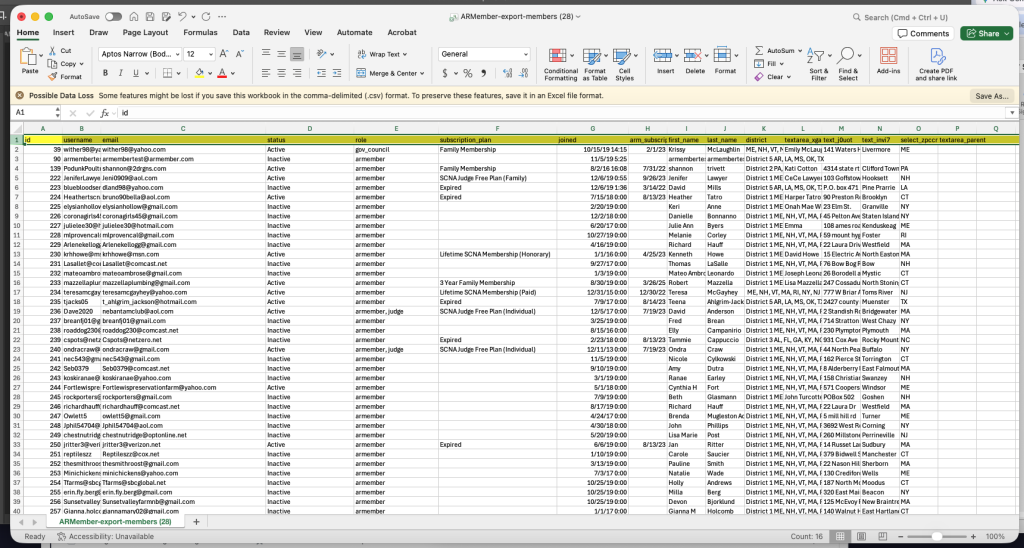
How to export membership list from the website
Process of exporting membership list from the website
The SCNA website uses the ARMember program for membership management. To export members, login to the website with your admin credentials.
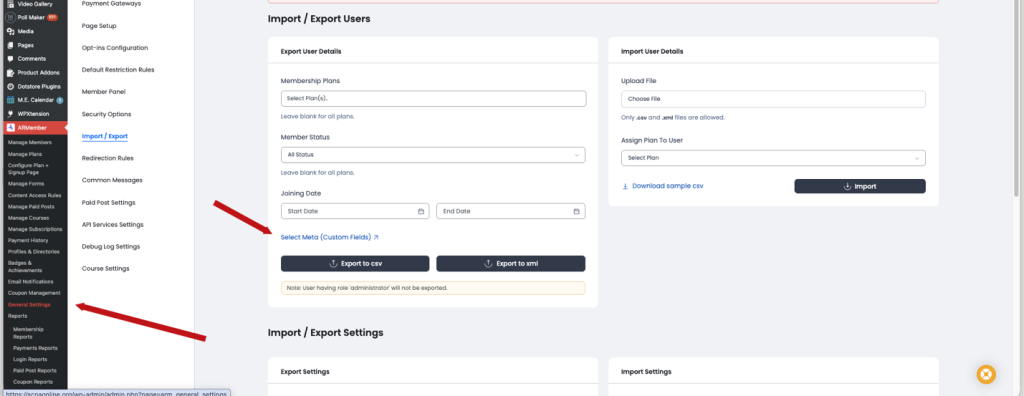
Navigate to ARMember and then General settings.
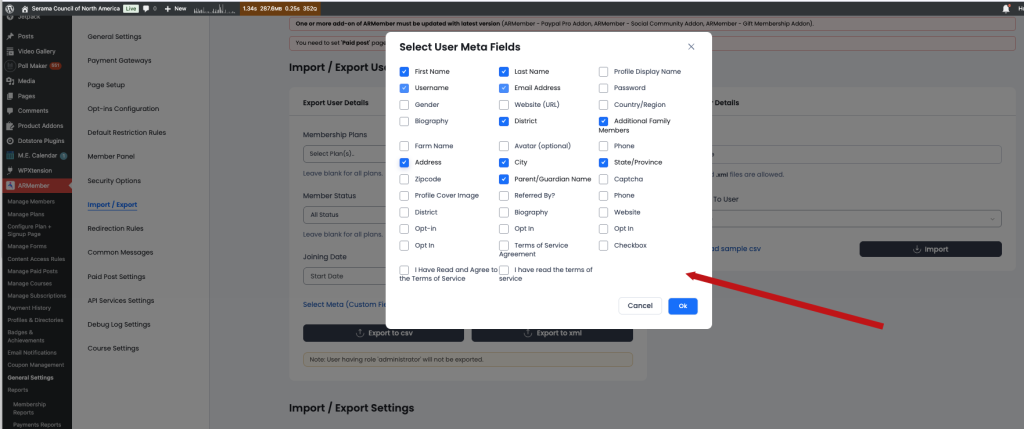
Then choose meta to export. This will be what fields you want to include in export, i.e name, address, state, district, membership status, etc.
You can always export many fields then delete them if you decide you don’t need them. Click ok
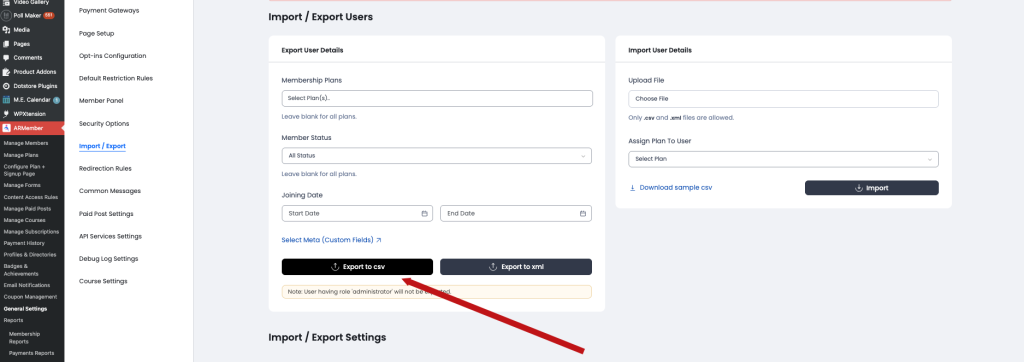
When you have the meta selected, after you click ok, you will be brought back to this screen. Export to CSV will allow you to open the downloaded file into Excel for you to work with. Most of the time, downloads will go into your downloads folder but you may have different settings on your computer.
Color, sort, delete membership based on your project.